How SpeedIQ measures your internet speed
SpeedIQ turns a single tap into a complete, accurate picture of your connection. Behind that one button is a careful, four-stage measurement process — the same methodology professional network tools use — designed to report exactly what your line can really do, in real time.
An internet speed test sounds simple: send some data, time it, show a number. In practice, getting a number you can actually trust is surprisingly hard. Wi-Fi distance, the test server you connect to, how many parallel connections are used, browser limits, and short-lived congestion can all skew the result. SpeedIQ is built from the ground up to control these variables so the download, upload, ping and jitter you see reflect your true, real-world performance — not an estimate.
Every measurement in SpeedIQ comes from real data transferred over your connection. We don’t guess your speed from a small sample or a cached value; we push and pull actual bytes between your device and a nearby high-capacity test server, and we time them precisely. Here’s exactly what happens, stage by stage.
1 · Find the best server
The moment you start a test, SpeedIQ selects the nearest, least-loaded test endpoint. Distance to the server adds latency and lowers throughput, so choosing a close, fast server is the first step toward a fair, repeatable result. Testing against the same kind of well-connected infrastructure every time is what makes two SpeedIQ tests comparable — and what lets you trust a change in your numbers as a real change in your connection rather than noise.
2 · Measure latency and jitter
Next, SpeedIQ fires a series of tiny round-trips to the server and times each one. The median of those round-trips is your ping (latency) in milliseconds — how quickly your connection reacts. The variation between consecutive round-trips is your jitter. Low ping makes web pages, games and video calls feel instant; low jitter keeps calls and gameplay smooth instead of stuttering. These two numbers matter as much as raw speed for anything interactive.
3 · Saturate the download
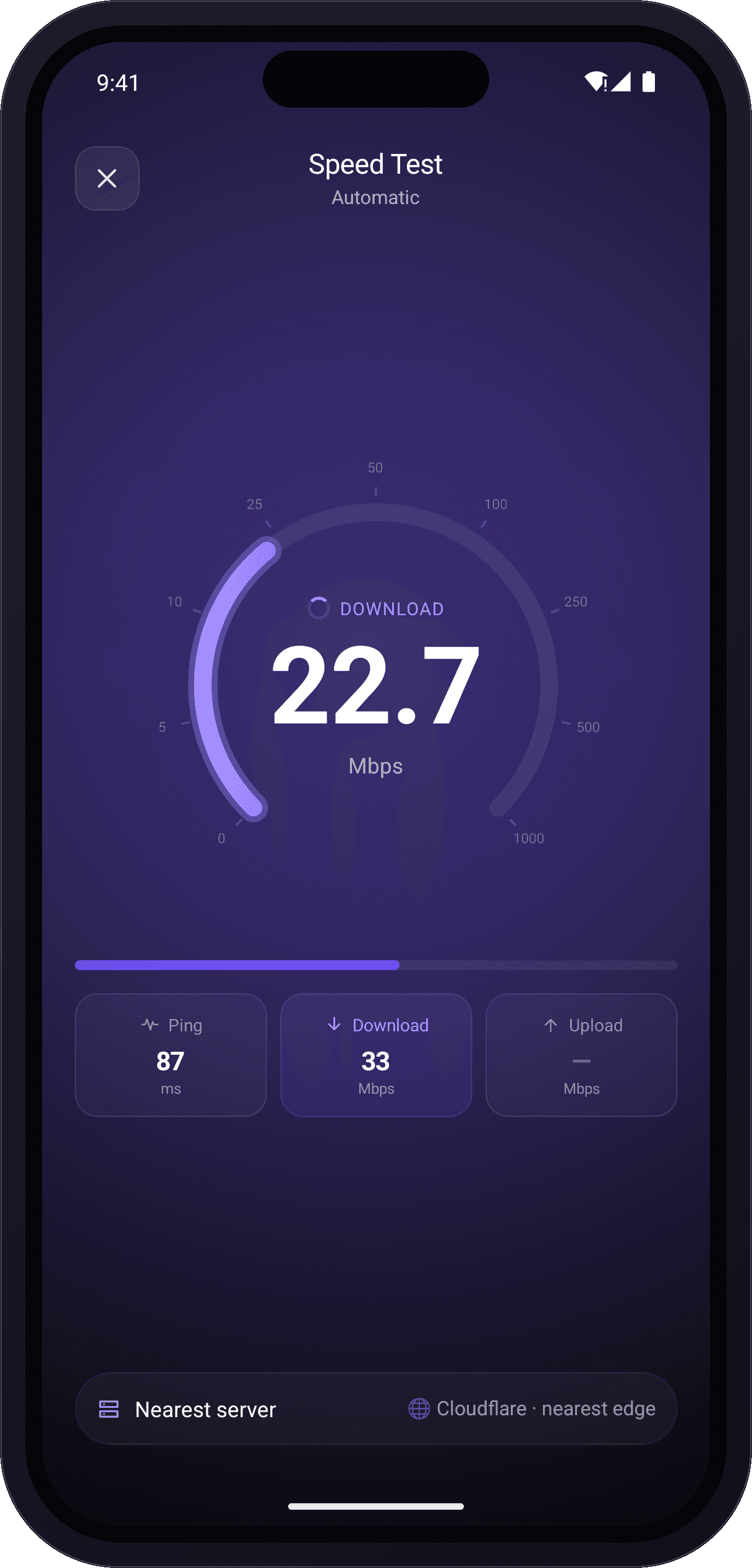
To find your real peak download speed, SpeedIQ opens several parallel connections and pulls data continuously until your line is full — exactly the way a streaming app, a game download or a busy browser loads content. A single connection rarely fills a modern broadband line because of how TCP ramps up, which is why one-stream tests often under-report fast connections. By using multiple streams and measuring the combined throughput, SpeedIQ captures the true ceiling of your line.
During the first part of this stage, the connection is still “warming up” (TCP slow-start). SpeedIQ deliberately excludes that ramp-up period from the final figure and measures the steady-state rate, so your download number reflects sustained performance rather than the slow first second. As bytes arrive, the live gauge climbs smoothly to your current speed in megabits per second (Mbps).
4 · Saturate the upload
Finally, SpeedIQ reverses the flow and streams real data from your device back to the server, using the same multi-stream, ramp-excluded method to measure your true upload speed. Upload is the quiet hero of a good connection: it drives video-call quality, cloud backups, file sharing, live streaming and how responsive online games feel. Many connections are asymmetric (much faster down than up), so seeing your real upload number can explain a lot about call quality and large transfers.
Reading your results
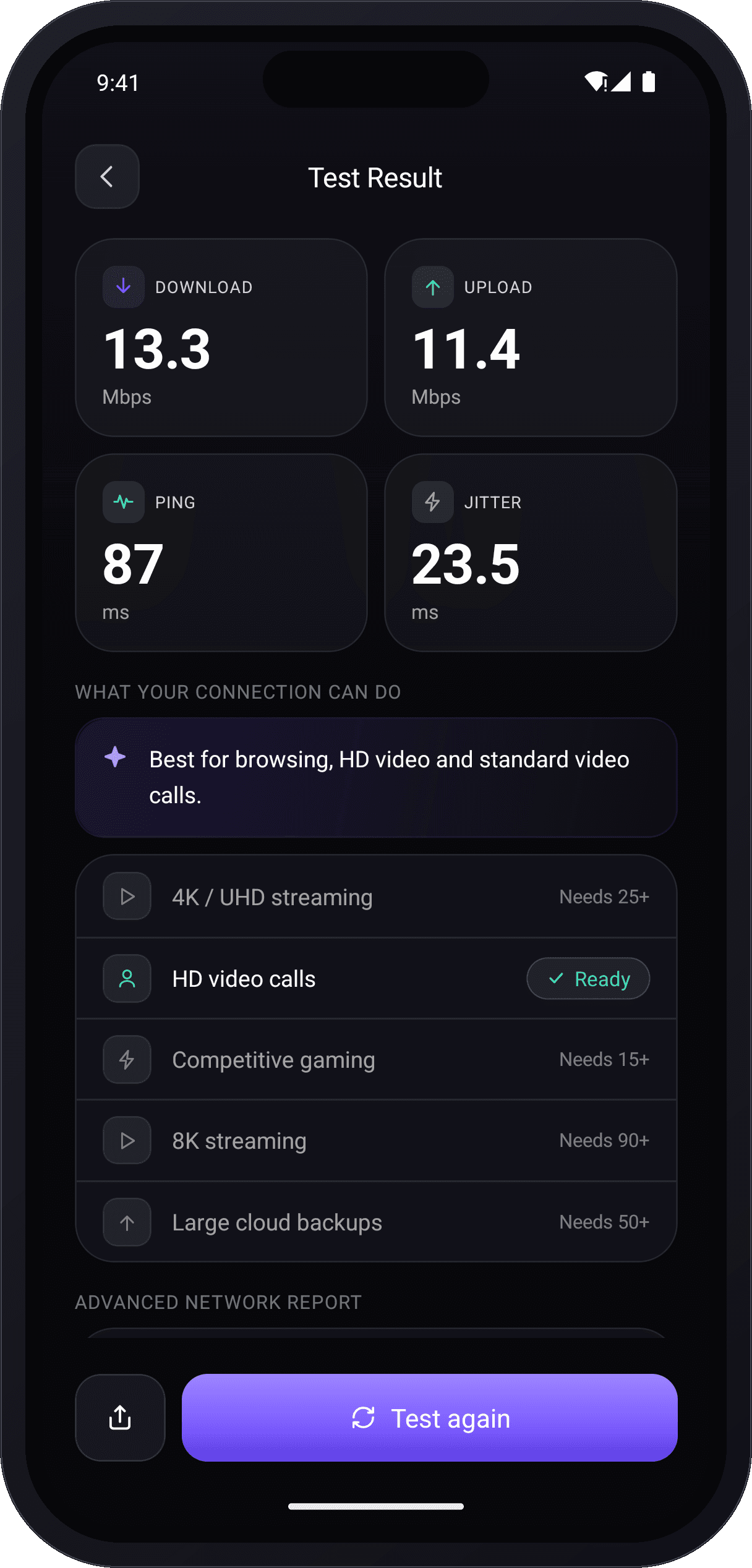
When the test finishes, SpeedIQ presents four headline numbers — download, upload, ping and jitter — and translates them into plain language. Instead of leaving you to interpret raw figures, it grades your connection and shows what it’s ready for: HD and 4K streaming, competitive gaming, video calls and large downloads. Each activity has a realistic requirement, and SpeedIQ marks the ones your measured speed comfortably supports.
For context: 25–100 Mbps download comfortably handles streaming and browsing for most homes; 200 Mbps or more suits many devices and 4K. A ping under 50 ms is excellent for gaming, and low jitter keeps calls crystal clear.
Why SpeedIQ’s results are accurate
Accuracy is the entire point of a speed test, so SpeedIQ is engineered around it. It transfers real, incompressible data so intermediaries can’t inflate results through compression. It uses parallel streams to reveal true peak throughput. It excludes the connection ramp-up and measures the steady state. It computes ping as a median (resistant to one-off spikes) and reports jitter so you understand consistency, not just speed. And it runs the test directly between your device and the server — there’s no account, no tracking of your results, and nothing sitting between you and the measurement.
Because the test moves real data, it uses a portion of your data allowance — typically tens to a few hundred megabytes for a full test, depending on your speed. On a metered or mobile connection, that’s worth keeping in mind. The upside is that what you get back is genuinely your connection’s performance at that moment, in that place, on that device.
Getting the most reliable reading
A few simple habits make your results more trustworthy and more useful over time:
- Test more than once. Run the test at different times of day to see how peak-hour congestion affects you.
- Compare like with like. For the closest comparison to your plan, test on a wired connection with nothing else heavy running.
- Mind your Wi-Fi. Distance from the router, walls and the 2.4 GHz vs 5 GHz band all change what you measure at the device.
- Pause background usage. Big downloads, cloud syncs and idle streams quietly consume bandwidth and lower your result.
- Keep a history. Tracking results over time turns one-off numbers into trends, so you can spot a real slowdown early.
That’s the whole philosophy behind SpeedIQ: make a rigorous, professional-grade measurement effortless, then explain it clearly. One tap, a smooth real-time gauge, and four numbers you can actually rely on — on iPhone, iPad, Mac and the web.
Download vs upload vs ping vs jitter
A complete speed test reports four numbers, and each tells you something different. Download speed, measured in megabits per second (Mbps), is how fast data reaches your device — it governs streaming quality, page loads and how quickly files arrive. Upload speed is how fast data leaves your device, and it drives video-call clarity, cloud backups and posting photos or video. Ping (latency), in milliseconds, is how quickly your connection responds — crucial for gaming and live calls. Jitter is how much that latency varies; low jitter keeps calls and gameplay smooth instead of stuttering.
Why your speed test result can vary
It’s normal for two tests minutes apart to differ, and understanding why helps you read your numbers correctly. Wi-Fi distance and interference, the 2.4 GHz versus 5 GHz band, peak-hour congestion on your provider’s network, other devices using bandwidth in the background, an older router and even the test server’s load can all shift the result. SpeedIQ controls everything within its reach — server choice, parallel streams, ramp-exclusion and median ping — so the remaining variation reflects your real connection rather than the test itself. For the most consistent picture, test on a wired connection with background usage paused, and run a few tests across the day.
How to use your results
Once you know your numbers, you can act on them: compare your download speed to the figure on your plan to confirm you’re getting what you pay for, watch ping and jitter if calls or games feel laggy, and check upload if backups or video calls struggle. Because SpeedIQ keeps a full history, a single reading becomes a trend — the fastest way to tell a genuine slowdown apart from a momentary blip, and to have a precise, evidence-backed conversation with your internet provider.